User Guide Configuration Wizard Tool for Telecom Power Systems


You can quickly configure your Telecom Power System using the ESTEL Configuration Wizard Tool. The tool helps you manage devices with ease and improves reliability. ESTEL values innovation and quality, so you get trusted solutions for your telecom infrastructure. > Use the step-by-step guidance to simplify setup, whether you have technical experience or not.
Key Takeaways
Use the ESTEL Configuration Wizard Tool to simplify the setup of your Telecom Power System. Follow the step-by-step guidance for a smooth experience.
Create and apply device templates to save time and ensure consistency across multiple devices. This reduces errors and streamlines your configuration process.
Set up notification profiles to stay informed about critical events in your system. Customize alerts to receive timely updates via email or SMS.
Regularly review and manage your service monitors and thresholds. This helps maintain system reliability and prevents costly downtime.
Document device dependencies and manage them effectively. This practice improves fault isolation and enhances overall network stability.
Getting Started with ESTEL’s Configuration Wizard

Access and Navigation
You start your journey with ESTEL by accessing the Configuration Wizard Tool through the main dashboard. ESTEL, a leader in telecom infrastructure solutions, designs this tool for easy use. You see a clean interface that guides you step by step. The dashboard displays all available devices and system modules. You click on the Configuration Wizard icon to begin. The navigation menu appears on the left side. You select your device type, such as Telecom Power System or Rectifier System, from the list. Each section is clearly labeled, so you find what you need quickly.
Tip: Bookmark the dashboard for faster access next time. You save time and avoid searching through menus.
Main Features Overview
The Configuration Wizard Tool offers several features that help you manage your telecom equipment. You create device templates, set notification profiles, and monitor service status. The tool integrates with ESTEL Telecom Power System products, so you configure power settings and monitor performance in real time. You use the wizard to set thresholds for power, environment, and battery monitors. You also define device dependencies and manage credentials securely.
Here is a quick overview of what you can do:
Add new devices and assign templates.
Edit device names for easy identification.
Set up alarm suppression rules.
Adjust monitoring intervals for each device.
Review event logs and create custom rules.
You control every aspect of your telecom system from one place. The Configuration Wizard Tool streamlines your workflow and reduces errors. You get reliable performance and efficient management, whether you handle a single site or multiple locations.
Device Template Setup
Templates help you save time and reduce errors when you configure devices. You use templates to set up multiple devices with the same settings. This method works well for both the Telecom Power System and Rectifier System. You avoid repeating the same steps for each device. Templates give you consistency and make your work easier.
Create Device Templates
You start by creating a device template in the Configuration Wizard Tool. You select the device type, such as Telecom Power System or Rectifier System. You enter the basic settings, including input voltage, output current, and communication ports. You add environmental controls and monitoring preferences. The tool lets you save this template for future use.
Tip: Name your templates clearly. Use names like "Outdoor Site Power" or "Standard Rectifier Setup" so you can find them quickly.
You can create templates for different site conditions. For example, you set up a template for mountain locations with specific cooling and battery settings. You use another template for urban sites with different thresholds. This approach helps you manage large networks with less effort.
Edit and Clone Templates
You may need to change a template as your network grows. You open the template editor and update the settings. You adjust voltage ranges or add new notification profiles. The tool lets you clone an existing template. You use the clone feature to create a new template based on an old one. This saves you time and keeps your configurations organized.
To edit a template:
Select the template from the list.
Click "Edit" and change the settings.
Save your changes.
To clone a template:
Choose the template you want to copy.
Click "Clone" and enter a new name.
Adjust any settings as needed.
You keep your templates up to date and ready for new devices.
Apply Templates
You apply a template when you add a new device to your network. You select the device and choose the template from the menu. The Configuration Wizard Tool loads all the settings automatically. You review the details and confirm the setup. This step ensures that every Telecom Power System or Rectifier System follows your standards.
Note: Applying templates reduces mistakes and keeps your network reliable.
You can apply templates to one device or many devices at once. This feature helps you scale your network quickly. You spend less time on manual configuration and more time on monitoring and improving performance.
Action | Benefit |
|---|---|
Create Template | Saves time and ensures consistency |
Edit/Clone | Updates settings easily |
Apply Template | Fast deployment and fewer errors |
Templates give you control and flexibility. You manage your Telecom Power System and Rectifier System with confidence.
Notification Profiles
Notification profiles help you stay informed about important events in your Telecom Power System. You set up profiles to receive alerts when something changes or when a fault occurs. This feature gives you control over how and when you get notified. You can choose to receive alerts by email, SMS, or through the dashboard. Notification profiles make sure you never miss critical updates.
Create Profiles
You start by creating a notification profile in the Configuration Wizard Tool. You select the type of event you want to monitor, such as power fluctuations, temperature changes, or battery status. You set the alert method and choose who receives the notifications. You can add multiple contacts for each profile. The tool lets you customize the message content, so you know exactly what is happening.
Tip: Use clear names for your profiles, like "Battery Alert" or "Temperature Warning." This helps you find and manage them easily.
You can create different profiles for different teams. For example, you set up one profile for technical staff and another for management. Each group gets the information they need to respond quickly.
Assign and Manage Notifications
After you create profiles, you assign them to specific devices or groups. You select the device from your list and link it to the right notification profile. The Configuration Wizard Tool sends alerts based on your settings. You can edit profiles at any time to add new contacts or change alert methods.
Notification profiles improve your monitoring and alerting. They help you detect faults fast, keep users informed, and support better decisions. The table below shows how notification profiles benefit your operations:
Benefit | Description |
|---|---|
Enhanced operator awareness | Facilitates fast fault detection and localization, proactive management, and reduced downtime. |
Enhanced user awareness | Provides prompt information on services impacted by network anomalies, ensuring service requirements are met. |
Improved operational decisions | Aggregates and visualizes telecom data for better efficiency, productivity, and reduced maintenance costs. |
You manage notifications with confidence. You keep your Telecom Power System running smoothly and respond to issues before they affect service.
Service Monitors in Telecom Power System
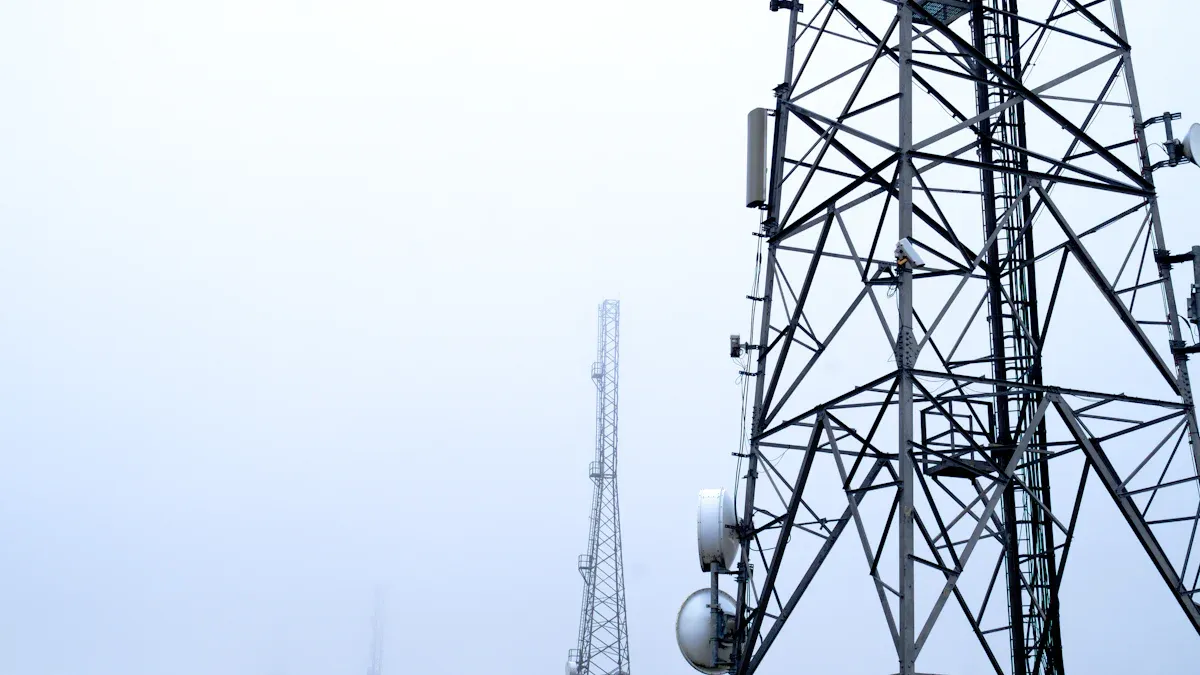
Service monitors play a key role in helping you track the performance of your Telecom Power System. You use these monitors to check network health in real time. Operators rely on automated alerts to spot issues quickly and prevent outages. Continuous monitoring also helps you meet service level agreements, which builds trust with customers and supports strong business relationships.
Add Service Monitors
You begin by adding service monitors through the Configuration Wizard Tool. The dashboard lets you select the devices you want to monitor. You choose the type of monitor based on your needs, such as power, battery, or environmental sensors. Adding monitors gives you instant access to important data. You see live updates on system status and receive notifications if something changes.
Tip: Add monitors for every critical device to ensure you never miss a fault or performance drop.
Here are some ways service monitors help you:
Real-time monitoring lets you assess network health instantly.
Automated alerts notify your team about potential problems.
Continuous monitoring supports customer trust and business growth.
Configure Monitor Parameters
After you add monitors, you need to configure their parameters for optimal results. Start by assessing your power monitoring needs. Decide how many devices you want to track and what level of detail you require. Choose equipment that matches your system’s accuracy and scalability needs. Install sensors and data units following the manufacturer’s instructions.
Set up each monitor by configuring voltage ranges, measurement intervals, and alarm thresholds. Calibrate sensors to ensure accurate readings. You can also adjust cooling parameters and estimate energy savings using simulation methods. Careful configuration helps you save energy and improve system efficiency.
Manage Monitors
Managing your service monitors keeps your Telecom Power System running smoothly. Schedule regular maintenance and calibration checks to maintain accuracy. Use the data collected to analyze performance and find ways to optimize energy use. Generate reports to share insights with your team and stakeholders.
You can integrate your monitoring system with building management platforms for easier data control. Adjust cooling settings and turn off unused transceivers to save energy. Routine management ensures reliable operation and helps you meet your efficiency goals.
Task | Benefit |
|---|---|
Regular Maintenance | Accurate data and reliability |
Data Analysis | Improved efficiency |
Integration | Streamlined control processes |
Note: Well-managed monitors help you prevent outages and keep your network performing at its best.
Threshold Settings
Setting accurate thresholds is essential for maintaining the reliability and safety of your telecom power system. You use thresholds to define safe operating ranges for power, environmental, and battery parameters. When a value moves outside these limits, the system sends an alert, helping you respond quickly and prevent damage.
Power Monitor Thresholds
You monitor voltage and current to keep your equipment safe. Industry standards recommend a standard operating voltage of -48VDC, with a safe range between -38.4V and -57.6V. You track current to avoid overloads and ensure balanced power use. Temperature control is also important. You keep equipment between 5°C and 40°C (41°F to 104°F) to prevent overheating. Setting these thresholds helps you avoid costly downtime and equipment failures.
Tip: Review your power thresholds regularly. Adjust them if your site conditions change or if you upgrade equipment.
Environmental Thresholds
Environmental thresholds protect your system from external risks. You monitor temperature, humidity, and water leakage. High humidity can cause corrosion, while low humidity may lead to static electricity. You maintain relative humidity between 20% and 80% RH, ideally 45%-55%. Dust, moisture, and temperature fluctuations can affect sensor accuracy and trigger false alarms. Advanced monitoring systems use AI to optimize these settings and reduce alarm fatigue.
Key environmental thresholds:
Temperature
Humidity
Water leakage
Proper environmental monitoring improves reliability and lowers maintenance costs.
Battery Monitor Thresholds
Battery health is critical for backup power. You set thresholds for temperature, float voltage, current, and internal resistance. Continuous logging of battery temperature helps you prevent overheating and thermal runaway. Monitoring float voltage and current lets you spot battery degradation early. You track internal resistance to assess efficiency and safety.
Parameter | Why It Matters |
|---|---|
Temperature | Prevents overheating issues |
Float Voltage | Detects battery degradation |
Current | Assesses charge/discharge |
Internal Resistance | Identifies efficiency risks |
Custom threshold alarms help you act before problems affect your network. You keep your telecom power system running smoothly by setting and managing these limits.
Event Log Rules
Event log rules give you powerful tools to track and analyze every action in your telecom power system. You use these rules to record configuration changes, monitor system modifications, and keep a close eye on administrative activities. Event logs help you maintain security, support troubleshooting, and ensure compliance with your organization’s policies.
Create Log Rules
You start by creating log rules in the Configuration Wizard Tool. You choose which events to record, such as device configuration updates, threshold changes, or user logins. You set the parameters for each rule, including the type of action, the devices involved, and the level of detail you want to capture. The tool lets you customize log formats, so you see timestamps, user identities, and outcomes for every event.
Tip: Use clear naming conventions for your log rules. This makes it easier to find and review specific events when you need to audit or troubleshoot.
You can select structured formats for your logs. Each entry includes important details that help you reconstruct audit trails and investigate issues. You store logs securely to prevent unauthorized access or tampering.
Aspect | Description |
|---|---|
Purpose | Audit logs provide a detailed record of system and user activities, crucial for security monitoring. |
Content | They capture configuration changes, system modifications, and administrative actions. |
Structure | Logs maintain structured formats with timestamps, user identities, actions performed, and outcomes. |
Security Significance | Helps track unauthorized changes and detect insider threats, ensuring compliance with security policies. |
Manage and Edit Rules
You manage and edit log rules to keep your system up to date. You review existing rules regularly to make sure they match your current security and operational needs. You update rules when you add new devices or change system configurations. The Configuration Wizard Tool makes it easy to modify rule parameters or adjust the level of detail in your logs.
Audit logs are essential for reconstructing audit trails at any time.
You store logs securely to prevent unauthorized access and modifications.
Protecting audit logs is critical for maintaining the integrity of your system.
You use event log rules to support fast troubleshooting. When a problem occurs, you check the logs to see what changed and who made the change. You identify issues quickly and take action to restore normal operations. Event log rules help you maintain a secure, reliable telecom power system.
Device Dependencies
Define Dependencies
You improve your telecom power system’s reliability by defining device dependencies. Dependencies show how devices interact and rely on each other. You use the ESTEL Configuration Wizard Tool to map these relationships. Start by selecting a device from your dashboard. Choose the "Dependencies" option. You see a list of available devices. Pick the ones that connect or depend on your selected device.
You can create a clear network map. This map helps you understand which devices affect others during faults or maintenance. For example, you link a rectifier system to its backup battery. You also connect environmental sensors to cooling units. This setup ensures that alarms and notifications reflect actual system risks.
Tip: Document each dependency. Use notes or labels to describe why devices depend on each other. This practice helps your team during troubleshooting.
Manage Relationships
Managing device relationships keeps your network organized. You review dependencies regularly. Open the Configuration Wizard Tool and check the "Device Relationships" section. You see all current connections. Remove outdated links if you upgrade equipment. Add new dependencies when you install new devices.
You can use a table to track relationships:
Device | Depends On | Purpose |
|---|---|---|
Rectifier System | Battery Backup | Power continuity |
Cooling Unit | Environmental Sensor | Temperature control |
Power Monitor | Main Cabinet | Status reporting |
You update relationships as your network grows. This process prevents false alarms and improves fault isolation. You also reduce downtime by knowing which devices need attention first.
Note: Regularly managing dependencies helps you maintain a stable and efficient telecom power system. You avoid confusion and keep your operations running smoothly.
Credential Management
Managing credentials is a key part of securing your telecom power system. You use the Configuration Wizard Tool to add, store, and update credentials for every device. This process protects your network and ensures only authorized users can access sensitive equipment.
Add and Store Credentials
You begin by adding credentials for each device. Enter usernames, passwords, or authentication tokens into the Configuration Wizard Tool. The system stores these credentials securely. You use strong passwords and change them regularly. Encryption protocols like AES and TLS protect your data during storage and transmission. You keep your credentials safe from unauthorized access.
Tip: Use unique credentials for each device. This practice reduces the risk of security breaches.
The table below shows recommended security measures for credential management:
Security Measure | Description |
|---|---|
Encryption | Strong encryption protocols like AES and TLS protect sensitive data. |
Access Control | Authentication methods such as password protection and multi-factor authentication. |
Key Management | Secure handling of encryption keys using VPNs and encrypted communication for updates. |
Associate with Devices
You must link credentials to the correct devices. The Configuration Wizard Tool helps you assign each set of credentials to a specific device. This step ensures secure access and prevents unauthorized users from controlling your equipment. The EAP-CREDS framework guides you through secure onboarding and provisioning. You give each device unique, network-specific credentials. This method minimizes security risks and supports safe operations.
You initialize device credentials during setup.
You provision credentials for each device and network.
You validate credentials to confirm secure access.
Note: Always verify that credentials match the device and network requirements.
Update or Remove Credentials
You update credentials when users change roles or when you detect a security risk. The Configuration Wizard Tool lets you edit or remove credentials quickly. You replace old passwords with new ones and revoke access for users who no longer need it. You also update encryption keys and authentication tokens as needed. Regular updates keep your system secure and compliant with best practices.
🔒 Regular credential management protects your telecom power system and supports reliable network performance.
Device Management Tasks
Managing devices is a core function of the ESTEL Configuration Wizard Tool. You can add new equipment, remove outdated units, or change the management status of devices. These tasks help you keep your telecom power system organized and efficient.
Add Devices
You start by adding devices to your network. The Configuration Wizard Tool makes this process simple. Click the "Add Device" button on the dashboard. Select the device type, such as Telecom Power System or Rectifier System. Enter key details like device name, location, and model number. Assign a template to apply standard settings instantly.
Tip: Use clear and descriptive names for each device. This practice helps you identify equipment quickly during troubleshooting.
After you enter the information, review the summary. Confirm your choices and save the device. The tool adds the new unit to your device list. You can now monitor and configure it as needed.
Delete Devices
You may need to remove devices that are no longer in use. Select the device from your list. Click the "Delete" option. The tool asks for confirmation to prevent accidental removal. Review the device details before you proceed.
Deleting a device removes it from your network map.
You free up resources and avoid confusion in future management tasks.
Note: Always double-check before deleting. You cannot recover deleted devices unless you have a backup.
Manage/Unmanage Devices
You control which devices are actively managed. To manage a device, select it and click "Manage." The tool starts monitoring and applying your configurations. If you want to pause management, choose "Unmanage." The device remains in your list but stops receiving updates and alerts.
Action | Result |
|---|---|
Manage | Enables monitoring |
Unmanage | Pauses updates |
This flexibility lets you focus on critical equipment and optimize system performance. You can easily switch management status as your network changes.
Managing devices with the ESTEL Configuration Wizard Tool keeps your telecom power system reliable and secure.
Alarm Suppression
Alarm suppression helps you manage alerts in your telecom power system. You use this feature to reduce unnecessary notifications and focus on critical issues. The ESTEL Configuration Wizard Tool gives you control over which alarms you see and when you receive them. This approach improves your operational efficiency and keeps your team focused.
Configure Suppression Rules
You start by setting up suppression rules in the Configuration Wizard Tool. You choose which alarms to suppress based on your network’s needs. For example, you can filter out duplicate alerts or alarms triggered by routine maintenance. You select the alarm type, set the conditions, and define the time frame for suppression. The tool lets you customize these rules for each device or group.
Tip: Review your suppression rules regularly. Adjust them to match changes in your network or maintenance schedule.
Alarm suppression addresses common challenges in telecom operations. Many internal audits show that 60-70% of alarms are duplicates or non-actionable. These alerts can cause alarm fatigue and make staff less responsive to real problems. You use suppression rules to filter out these distractions.
Evidence Type | Description |
|---|---|
Alarm Fatigue | Internal audits show that 60-70% of alarms are duplicates or non-actionable, leading to desensitization of staff. |
Planned Maintenance | Alarms generated during maintenance can be suppressed to avoid unnecessary distractions. |
Predictable Subscriber Behavior | Alarms from expected subscriber actions can be filtered out to focus on critical alerts. |
You improve your team’s focus and response time by managing alarms effectively.
Temporarily Disable Alarms
You may need to disable alarms for a short period. You use this feature during planned maintenance or system upgrades. The Configuration Wizard Tool allows you to pause specific alarms without affecting overall monitoring. You select the alarm, set the duration, and confirm the action. The system resumes normal alerting after the set time.
Use temporary suppression to avoid distractions during maintenance.
Restore alarms automatically when work is complete.
Note: Always inform your team when alarms are disabled. This practice ensures everyone stays aware of system status.
Alarm suppression helps you maintain a reliable telecom power system. You keep your operations efficient and your staff focused on what matters most.
Monitoring Intervals
Set and Adjust Intervals
Monitoring intervals determine how often your system checks device status and collects data. You set these intervals in the ESTEL Configuration Wizard Tool to match your network’s needs. Shorter intervals give you faster updates and quicker alerts. Longer intervals reduce system load and save resources.
You start by selecting a device or group of devices from your dashboard. Click the “Monitoring Intervals” option. You see a menu with preset choices, such as every minute, every five minutes, or every hour. You can also enter a custom interval if your site has special requirements.
Tip: Use shorter intervals for critical devices like rectifier systems or main power units. This helps you catch faults early and respond quickly.
You adjust intervals based on device type and network activity. For example, you set frequent checks for battery health during peak hours. You choose longer intervals for environmental sensors in stable conditions. The Configuration Wizard Tool lets you change intervals at any time. You review performance data and make adjustments to optimize efficiency.
Here is a simple table to help you decide:
Device Type | Recommended Interval | Reason |
|---|---|---|
Power System | 1-5 minutes | Fast fault detection |
Rectifier System | 1-5 minutes | Critical power updates |
Environmental Sensor | 15-60 minutes | Stable conditions |
Battery Monitor | 5-15 minutes | Health tracking |
You monitor your network more effectively when you set the right intervals. You balance speed and resource use. You keep your telecom power system reliable and efficient.
Note: Review your monitoring intervals regularly. Adjust them as your network grows or as device roles change.
Edit Device Names
Update Display Names
You improve your network management when you update display names for devices in the ESTEL Configuration Wizard Tool. Clear and descriptive names help you identify equipment quickly. You avoid confusion during troubleshooting and routine checks. You also make reports easier to read and share with your team.
You start by selecting the device from your dashboard. Click the "Edit Name" option next to the device listing. Enter a new display name that matches the device’s location, function, or model. Save your changes to update the name across your system.
Tip: Use names that include site location, device type, and purpose. For example, "MountainSite-Rectifier01" or "UrbanCabinet-PowerSystemA". This practice helps you and your team find devices faster.
Here are steps you follow to update display names:
Open the Configuration Wizard Tool dashboard.
Find the device you want to rename.
Click "Edit Name".
Type the new display name.
Save your changes.
You can use a table to organize naming conventions:
Old Name | Improved Display Name | Reason for Change |
|---|---|---|
Device01 | NorthTower-Rectifier01 | Shows location and type |
CabinetA | UrbanCabinet-PowerSystemA | Adds site and function |
BatteryUnit | WestSite-BatteryBackup01 | Clarifies role and site |
You keep your network organized when you use clear display names. You reduce errors and speed up maintenance tasks. You also help new team members learn the system faster.
Updating display names is a simple step that brings big benefits to your telecom power system management.
Best Practices & Troubleshooting
Common Mistakes to Avoid
You can avoid many issues by following a few best practices when using the Configuration Wizard Tool. Here are some common mistakes to watch for:
Skipping device template setup. This leads to inconsistent configurations.
Forgetting to assign notification profiles. You might miss important alerts.
Not updating credentials after staff changes. This can create security risks.
Overlooking regular review of event log rules. You may miss unauthorized changes.
Using unclear device names. This makes troubleshooting harder.
Tip: Review your setup checklist before you deploy new devices. This habit helps you catch errors early.
Troubleshooting Tips
If you face problems with your Telecom Power System configuration, try these steps:
Check all device connections. Loose cables or network issues often cause problems.
Review event logs for recent changes or errors.
Confirm that thresholds and notification profiles match your current needs.
Test alarm suppression rules to ensure they do not block critical alerts.
Update firmware and software to the latest versions.
You can use the following table to guide your troubleshooting:
Issue | Quick Check |
|---|---|
Device not responding | Verify power and network cables |
No alerts received | Check notification profile settings |
Incorrect data in dashboard | Recalibrate sensors |
Note: Always document your troubleshooting steps. This practice helps you and your team solve future issues faster.
ESTEL Support Resources
You have access to several support resources from ESTEL. Visit the official website for product manuals, FAQs, and software updates. You can contact the support team by email at info@estel.com.cn or call 00-86-13752765943 for direct assistance. ESTEL also provides detailed documentation for the Configuration Wizard Tool and the Telecom Power System. Use these resources to resolve issues quickly and keep your network running smoothly.
You can set up and manage your Telecom Power System efficiently with the ESTEL Configuration Wizard Tool. The step-by-step process helps you avoid mistakes and keeps your network reliable. You gain better control over device settings and notifications. If you need help, ESTEL offers support and resources. Visit the official website to learn more and get expert guidance.
FAQ
How do you access the ESTEL Configuration Wizard Tool?
You log in to the main dashboard using your credentials. Click the Configuration Wizard icon. The navigation menu appears on the left. You select your device type and begin setup.
Can you apply one template to multiple devices at once?
Yes, you select several devices from your list and choose a template. The Configuration Wizard Tool applies the settings to all selected devices. This saves you time and ensures consistency.
What should you do if you stop receiving notifications?
Check your notification profile settings.
Make sure your contact information is correct.
Review alarm suppression rules.
Contact ESTEL support if the issue continues.
Where can you find support resources for troubleshooting?
Resource | How to Access |
|---|---|
Official Website | |
Email Support | |
Phone Support | 00-86-13752765943 |
See Also
Essential Insights for Newcomers on Telecom Power Systems
In-Depth Overview of Wiring and Cable Choices for Telecom Cabinets
Calculating Methods for Telecom Cabinet Power Systems and Batteries
Understanding the ESTEL Power System for Telecom Cabinets
ESTEL's Comprehensive Overview of Telecom Cabinet Specifications
CALL US DIRECTLY
86-13752765943
3A-8, SHUIWAN 1979 SQUARE (PHASE II), NO.111, TAIZI ROAD,SHUIWAN COMMUNITY, ZHAOSHANG STREET, NANSHAN DISTRICT, SHENZHEN, GUANGDONG, CHINA
